How to Set Up Your Laptop Stand for Maximum Comfort

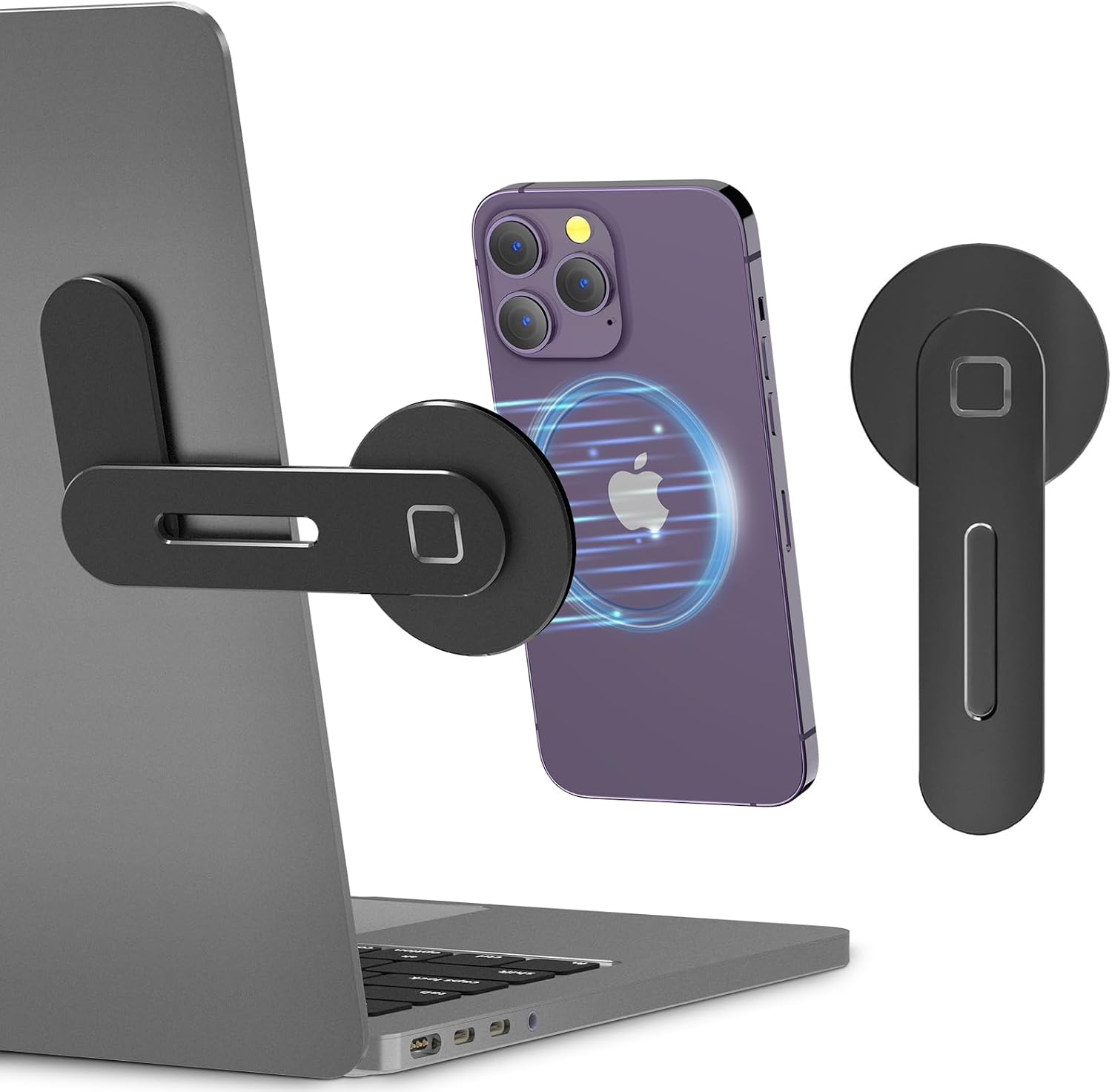
Setting up your laptop stand correctly is crucial for maintaining comfort and productivity during long work hours. With the right adjustments, you can create an ergonomic workspace that reduces strain on your neck, back, and wrists. Here’s how to optimize your laptop stand for a healthier work experience.
Understand the Importance of Ergonomics
Ergonomics focuses on designing a workspace that fits the user’s needs, promoting safety and comfort. Poor workstation setups can lead to discomfort, fatigue, and even long-term health issues. By utilizing a laptop stand, you can elevate your device to eye level, encouraging better posture and reducing physical strain.
Incorporating ergonomic principles into your workspace not only enhances comfort but also boosts productivity. A well-aligned workstation allows for easier access to your keyboard and screen, reducing the need for awkward movements that can lead to discomfort and distractions.
Choose the Right Laptop Stand
Selecting a laptop stand that fits your specific needs is essential. Look for adjustable models, like the CloudValley Adjustable Laptop Stand, which allow you to customize the height and angle of your screen easily. This flexibility can make a significant difference in achieving optimal posture.
Consider portability as well. The Triyards Portable Laptop Riser is a great option if you frequently work in different locations. A lightweight and foldable design ensures you can maintain a comfortable setup wherever you go.
Set the Stand at Eye Level
Adjust your laptop stand so that the top of the screen is at or slightly below eye level. This positioning helps you maintain a neutral neck posture, preventing the common tendency to hunch forward. When your screen is at the right height, your eyes are naturally drawn to it, allowing for less strain on your neck and shoulders.
To determine the perfect height, sit comfortably in your chair and look straight ahead. Your line of sight should ideally meet the top of your laptop screen. If it’s too low, raise the stand; if it’s too high, adjust it to find that sweet spot. A simple adjustment can greatly enhance your comfort throughout the day.
Adjust Your Chair Height and Position
Your chair height and position also play a crucial role in your overall comfort. Ensure that your chair is adjusted so that your feet rest flat on the ground, with your knees at a 90-degree angle. This setup prevents pressure on your thighs and promotes blood circulation.
Additionally, make sure your back is supported by the chair. If your chair lacks lumbar support, consider using a cushion or a small pillow to maintain a natural curve in your spine. Proper chair adjustments work in tandem with your laptop stand, creating a cohesive ergonomic environment.
Use an External Keyboard and Mouse
Using an external keyboard and mouse can significantly enhance your comfort while working on a laptop. By placing these tools on a flat surface, you can keep your wrists neutral and your elbows at a comfortable angle. This setup minimizes the strain that often comes from using the laptop’s built-in keyboard and trackpad.
When selecting your external accessories, look for options that match your ergonomic standards. For instance, a wireless mouse can help you maintain a cleaner workspace while offering better maneuverability. Pairing the right accessories with your laptop stand ensures a truly ergonomic setup.
Take Breaks and Change Positions
Even with the best ergonomic setup, it’s important to remember to take breaks throughout your workday. Regularly standing up, stretching, or even changing your position can help alleviate muscle tension and prevent the onset of fatigue. Aim for short breaks every hour to stand, walk around, or do a few stretches.
Incorporating movement into your routine not only boosts your physical well-being but also enhances mental clarity. A few minutes away from your workstation can refresh your mind, preparing you for the next task ahead. Remember, a comfortable workspace is not just about adjustments but also about your habits.
Maintain an Organized Desk Space
Tips for Keeping Your Desk Organized:
- Use clear acrylic organizers for stationery, like the Non-Sticky Note Holder, to keep your essentials within reach.
- Minimize clutter by only keeping items that are necessary for your daily tasks on your desk.
- Utilize vertical space with shelves or wall-mounted organizers to free up your desk surface.
- Regularly declutter to maintain a tidy environment that promotes focus and productivity.
An organized desk can enhance your overall work experience by reducing distractions and creating a calming atmosphere. A clear mental space often leads to improved concentration and efficiency, allowing you to focus on your tasks more effectively.
Customize Your Workspace for Fun
Your workspace should reflect your personal style as much as it serves functional purposes. Adding elements that bring you joy can enhance your comfort and motivation. Consider colorful desk accessories or unique stationery items that inspire creativity.
Incorporating personal touches, like plants or artwork, can create an inviting atmosphere that encourages productivity and positivity. Don’t hesitate to experiment with different layouts or colors to find what resonates with you and makes your workspace enjoyable.
Where to start
To begin optimizing your laptop stand, start by assessing your current workspace layout. Identify areas where you can make quick adjustments, such as raising your laptop or adjusting your chair. A few simple changes can lead to a noticeable difference in comfort and productivity.
Once you’ve set up your laptop stand and made the necessary adjustments, ensure you have the right accessories on hand, like an external keyboard or a phone holder. Visit us at Stationery and Toy World for a variety of desk accessories that can help you create an ergonomic and enjoyable workspace. Your comfort is just a few adjustments away!
From our shelves
- CloudValley Adjustable Laptop Stand, Magnetic Phone Holder
- Non Sticky Note Holder Clear Acrylic Post It Note Holder 3×3 in Memo Pad Paper Cube Dispenser Notepad
- Triyards Portable Laptop Riseru2013Self-Adhesive Aluminum Foldable Laptop Stand
Browse the Desk Stands and Risers range, or see everything in stock. Questions about what suits your setup? Talk to us or read the FAQ.